Hardware |
Links to topics on this page:
| ||
The term hardware refers to the physical components of the computer system (as opposed to the software). Your computer hardware will consist of the devices within the case of the computer itself, and any peripheral devices that are connected to the computer (such as the mouse and keyboard).
|
| ||
The primary component of the computer is the motherboard(also called the main circuit board, main logic board, mainboard, or systemboard). The motherboard is a large printed circuit board with microchips, connectors, and other components mounted on it, and with copper circuitry traces that connect the components together.
A motherboard typically holds the following items:
Additional information about the parts listed above can be found in the other sections of this tutorial. Along with the motherboard, the case of your computer typically contains apower supply (to convert the AC line current from the wall outlet to the low-voltage DC current used by the computer) and several storage devices located in the expansion bays of the case (such as: hard drives, floppy drives, Zip drives, and CDdrives, and DVD drives).
Configurations and Specifications | 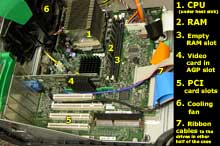 | ||
When you go to purchase a computer (either online or at a computer store) you will have several system configurations to choose from. Each configuration includes a particular set of parts or components (both hardware and software) in a specific arrangement. A similar term, architecture, also describes the layout and interactions of the components of a computer system.
Each system configuration will have a specification that lists the details about the components included in that particular system. Below you will see a typical computer system specification; look it over carefully. By the time you finish with all the parts of this tutorial, you should be able to explain all of the terminology in this specification:
Typical Specification for a Desktop Computer System | |||
| 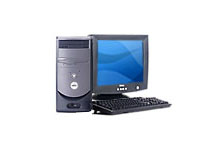
Typical PC System (not all components are shown here).
| ||
Whew! What does all that mean? Read the other parts of this tutorial (processors, memory, input/output, storage, ports, and net/telecom) to find out. (The terms in italics in the specifications list above are brand names that you don’t need to know).
| |||
Tuesday, 11 August 2015

Software |
Links to topics on this page:
| ||
Computers seem to perform amazing feats as they process information and display output almost instantly; but behind the scenes, they are really very simpleminded devices. All they do is plod along executing long strings of instructions that were previously written by a clever human programmer. The thing that makes a computer’s performances seem so amazing is that it executes these instructions very, very, very quickly, accurately, and tirelessly. Computers aren’t smart; they are just FAST.
But computers can’t do ANYTHING without step-by-step instructions written out for them. These lists of instructions are called programs. Programs (and the associated data) are known as software. Software needs to be installed onto a computer before it can be used. Software is often sold in sets of several programs and associated data called a software package, and typically comes on a CD-ROM or may be downloaded from the Internet. The Microsoft Office Suite is such a collection of programs and data that allows users to manipulate words, numbers, and data.
There are two major categories of software: System softwareand Application software.
System Software
System software controls a computer’s operations and manages a computer’s resources. System software includes the operating system, utilities, and computer programming tools.
The operating system (OS) controls the allocation of hardware resources such as memory space and CPU processing time, and handles the basic input and output (I/O) for data flowing from and to storage devices (such as hard disks) and peripherals (such as your keyboard). The operating system allows application software to access system resources without the applications having to know the details about the system hardware. The operating system often allocates resources and processing time between several programs which are running at once, which is called multitasking. Multitasking allows you to perform multiple tasks at the same time, such copying a chart from an open Excel document and pasting it into a report you have open in Word, all while your web browser is downloading a large file from the Internet in the background. It is the OS that plays traffic cop in this situation, deciding which program gets time on the CPU when, and handles the flow of data.
The operating system also includes software that provides the user with a operating environment for interacting with the computer. An operating environment could be a command-line interface (requiring the user to type in commands to control the computer), or it could be a graphical user interface (GUI, pronounced “gooey”) that allows users to interact with the computer using a mouse to point and click on icons, buttons, menus, etc.
IBM PC computers originally used the PC-DOS operating system (also sold by Microsoft to other PC users as MS-DOS). DOS is a general term that means “Disk Operating System” and old examples include DOS 3.3 for Apple II computers, and TRS-DOS of Radio Shack TRS-80 computer. However, when most people use the term DOS, they are referring to some version ofMicrosoft’s DOS for the PC — just as most people use the general term “PC” (which just means personal computer) to refer specifically to the IBM-PC and the PC-compatible computers descended from it.
Most PCs today use some version of the Microsoft Windowsoperating system (such as Windows 2000 or Windows XP). Windows includes a GUI user environment. A smaller number of PCs use the Linux operating system (a Unix-like OS).
Macintosh computers use some variation of theMacintosh OS, which is a GUI operating system. Older macs may use Mac OS 9, but newer Macs use Mac OS X(pronounced “O S ten”). OS X is built on top of FreeBSD, a Unix-like OS.
High-end microcomputer workstations, file servers, and mainframes often run some variation of the Unix operating system.
System software also includes the software needed to access a peripheral device connected to the computer. Such software is called a device driver, and it controls I/O to the peripheral. The device drivers may come already installed in the OS, or you may have to install or update a driver when you add a new peripheral device.
System software may also include security software, such as Virus checkers and firewalls. A virus checker searches files for potentially harmful programs such as viruses, worms, or trojan horses that are written by malicious programmers. Viruses and similar programs can perform disastrous activities on your computer system, such as erasing your hard disk. To be safe, you should scan all downloaded files and messages on your PC (anti-virus software can automatically do this) and never run any e-mail attachments if you don’t know what they are. (Note: There are vastly fewer viruses that affect Macintosh computers than affect PCs.) A firewall, or similar program, protects your computer from unauthorized access over a network or telecom connection.
Utilities are programs that perform a very specific task, usually related to managing system resources such as disk drives, printers, etc. Unlike application software, utilities tend to be smaller in size and perform activities related to the computer system (scanning for viruses, manipulating file settings, scanning for disk errors, etc.). Some utilities are memory-resident programs that are loaded into RAM and operate in the background.
System software also includes the tools used to write other programs. These include compilers, assemblers, and debuggers for various computer programming languages. A programming language allows a person to write computer instructions in a language that is easier for a human to understand, but which is then converted into the low level numerical instruction codes that a computer processor unit can execute. Some programming languages include C, C++, Java, FORTRAN, COBOL, PASCAL, BASIC, Visual Basic (and such scripting languages as JavaScript and Perl).
Application Software |
System software
Operating systems GUI Utilities Application software Word Processing Spreadsheets Databases Graphics Etc. | ||
Application software runs on top of the operating system and allows the user to perform a specific task, such as word processing a letter, calculating a payroll in a spreadsheet, manage a database of information, reading e-mail messages, or manipulating digital photographs. Most applications allow the production and editing of documents (which are the data files created by the application programs). The document files (such as a report created in Word, or a PowerPoint presentation, or a budget spreadsheet) can then be printed, displayed on a screen, or transmitted to other locations.
Applications (and other programs) are stored on your PC asexecutable files (they contain program steps that the computer can execute); documents are stored as data files.
Some common applications used on personal computers include:
| |||
A word processor (such as MS Word or Wordperfect) allows you to enter and format text (as well as some graphics) to create reports, letters, etc. Formatting options include changing the text size, font (typeface), line spacing, and page margins. You may also define styles that are named formatting specifications that allow you to apply and update consistent formatting throughout a long document. You can also use document templates that contain pre-made formatting, styles, and content to allow you to create a document quickly without repeating work unnecessarily. Unlike the first word processors, modern versions use a “what you see is what you get” (WYSIWYG) approach wherein the display on the screen tries to mimic as closely as possible the printed result you will get.
Word processors also handle block operations on chunks of text, such as copying, cutting, and pasting paragraphs or lines (the blocks of information) from one place to another. Word processors include dictionary software to perform spell-checking (and can also do grammar-checking and act as athesaurus to provide alternate words of similar meaning). Word processors also incorporate functions to search your document contents, or to search & replace one word with another. You will usually find clip art (small pre-made graphics) collections available in most word processors.
In fact, many of the functions above (copy & paste, search, defining styles, etc.) are also available in most of the applications discussed below. Word and the other products of the Microsoft Office Suite of programs (including Excel, Access, and PowerPoint) can exchange data using OLE (Object Linking and Embedding). This integration of the programs allows you to copy a chart from Excel into a Word document, but have the chart remain linked to the original data; if you open the Excel sheet later and change the numbers, the chart in Word will also reflect that change.
| |||
Desktop Publishing software (such as QuarkXPress and Adobe InDesign) go beyond word processors, giving you more control over the typesetting and graphic placement of a document. DTP software is used to layout books, magazines, newsletters, complex reports, etc.
| |||
Spreadsheet software (such as MS Excel) allows the user to do numerical calculations and produce charts of the results. In a spreadsheet program, the user works in a worksheetconsisting of rows and columns (labeled with numbers and letters). The intersection of each row and column is a cell that can contain text, numbers, or formulas. The formulas use the contents of other cells to calculate new results; but the formulas use the cell reference (the row & column location of the cell) and not the contents of the cell — so if the contents of a cell is changed, all dependent formulas automatically recalculate their results. This gives the user to perform “what if” experiments with a complex calculation (“How will our bottom line profits change if we increase our advertising budget by 10%? By 20%?”). Business and financial people love spreadsheets.
| |||
Database management software (such as MS Access or FileMaker Pro) allow users to manipulate large amounts of information and retrieve any part of the information that is of interest. A structured database contains data tables that are arranged in a uniform structure of records and fields. An example would be a listing of a company’s customers (and the information about each one), and a listing of all orders placed by those customers. A different type of database is free-form, and does not have the rigid structure for categorizing the information (the World Wide Web, for example, is a huge collection of data archives with no common structure).
| |||
Web authoring software (such as Dreamweaver or GoLive) allow users to create complex web pages without the user having to know XHTML or CSS or JavaScript. The user simply inserts text and graphics into a WYSIWYG editing window to layout the material as desired, and the application software write the necessary web page code in the background.
| |||
| Integrated software packages (such as AppleWorks or Microsoft Works) combine several different application program functions (such as word processor, spreadsheet, database, graphics, presentation) into one application. The individual modules of the packages are not as powerful as the separate applications in the MS Office Suite, for example, but they may provide the home user with the functionality they need at a much cheaper price. | |||
Storage Devices |
Links to topics on this page:
| ||
Storage devices, such as disk drives, store your documents (data files) and programs (executable files) when they are not currently in use for processing. Unlike the contents of RAM, the data stored on these devices does not vanish when power is turned off.
The major categories of storage devices are magnetic, solid state, and optical.
Hard Disk Drive |
| ||
A hard disk drive contains disks made of metal and coated with a metal oxide that can be magnetized. A tiny electromagnetic read/write head on the end of a seek arm magnetizes tiny spots on the disk to store data. Magnetic spots magnetized in one direction represent a one; spots magnetized in the opposite direction represent a zero (OK, I simplified things a little, but you get the idea). The same electromagnetic head can later sense the magnetic fields of the spots as they pass underneath the head, allowing the data to be read back from the disk.
Hard drives are rated by their storage capacity, typically tens or hundreds of gigabytes. They are also rated by how fast the disks spin (in rpm, rotations per minute), which is typically thousands of rpm. Another way to rate a hard disk is by average access time (measured in milliseconds, ms), which tells on average how long it would take the drive to retrieve any bit of data from the disk. Typical seek times are around 6 ms.
The electronics that control the hard disk often incorporate some cache memory. The drive reads in several sectors of data instead of just one—that way, if the CPU happens to request those next sectors, the drive can send them immediately without having to wait for the disk to rotate back around again.
The controller electronics for a hard drive may be IDE, orATA, or SCSI, or something else. Don’t worry about this detail here, but you do need to get the right kind to go into your computer if you want to add additional drives. You can also plug additional hard drives externally into the USB or Firewire ports of a computer, if desired.
Floppy Diskette | 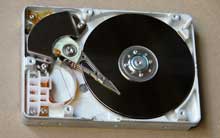
Hard Disk
(click for larger image) | ||
In a floppy diskette the disk is made of flexible mylar plastic coated with metal oxide that can be magnetized. Floppy diskettes are 3.5" in size (older style floppy diskettes for early PCs were 5.25").
A shutter protects the disk surface from dirt and fingerprints; the shutter slides out of the way when the disk is inserted into the drive so that the read/write heads can reach the disk.
A small plastic slider can be slid to unblock a hole in the corner of the diskette to write-protect the disk (so data can’t be accidentally erased).
High-density floppy diskettes hold 1.44 MB. The access time is much slower than for a hard disk, and they are somewhat unreliable. Many new computers don’t have a floppy drive, but you can purchase an external drive to plug in if you need to.
Zip Disk | 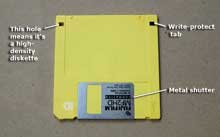
Floppy Diskette (1.44 MB)
(click for larger image) | ||
A Zip disk is similar in size to a floppy diskette, but thicker. It is basically a “super floppy” but the higher construction tolerances and smaller read/write heads allow the Zip disk to hold more data than a floppy. The first Zip disks held 100 MB. Later Zip drives could read 250 MB Zips (in addition to the old 100 MB disks). An even newer model Zip drive uses 750 MB disks.
Both Zip disk and floppy diskettes have the advantage of beingremovable media. Data stored on these disks can be removed and taken to other locations. Both Zips and floppies can be formatted for either the PC or the Macintosh (Macs can read both formats).
We had Zip drives in our previous PCs and Macs at UNM-LA, but our newer computers don't use these, so you may never have to deal with them.
Flash Drive | 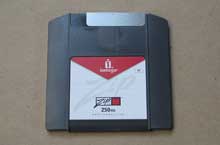
Zip Disk (250 MB)
| ||
A USB Flash Drive is a portable solid state memory device that plugs into a USB port on your computer. They have many other names (such as key drive, pocket drive, thumb drive, pen drive). They have replaced floppy diskettes and Zip disks at UNM-LA as our preferred means to carry files around. They work on both Macs and PCs.
These small drives store data on flash memory microchips (a kind of EEPROM). Flash memory can be erased and re-written a limited number of times (typically many thousands of times). Some units have a write-protect switch.
The storage capacity varies, but anything from 16 MB to over a gigabyte are available.
Flash Memory Cards | 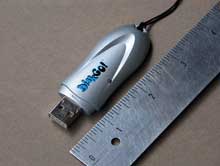
USB Flash Drive
(click for larger image) | ||
The same kind of flash memory used in the USB flash drives above are is used in small memory cards (a Secure Data SD card, and a Compact Flash card are shown on the right). These cards are used by PDAs, digital cameras, MP3 music players, and other digital devices. You can attach a flash memory card reader to your computer to read and write data to these cards as well. These memory cards (and other types not shown here) come in a variety of storage capacities from tens of megabytes to over a gigabyte.
CD-ROM | 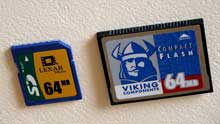
Example Flash Memory cards (SD card left, Compact Flash card right)
| ||
A CD-ROM (Compact Disc Read Only Memory) is anoptical storage medium that can hold about 670MB. “Optical” means that light is used to read the data from the disk (it is not a magnetic medium). CD-ROMs are very cheap to produce in large quantities, so most software is distributed on CD-ROMs.
Data is stored on a CD-ROM as small pits in the plastic of an inner layer, which is then aluminized and overcoated with another clear layer. A laser beam inside the CD-ROM drive is bounced off the disk and the sequences of pits and not-pits (the reflectivity is different) is converted into the ones and zeros of the data.
CD-ROM drives are rated by speed, such as 32x, which means 32 times faster than the first CD-ROM drives.
CD-R and CD-RW | 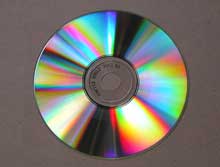
CD-ROM disc
| ||
CD-R (Compact Disc - Recordable) and CD-RW (Compact Disk - ReWritable) are CDs that can be written to (if your computer has a CD-RW drive).
The CD-R discs have a layer of dye that is changed by a higher power laser in the drive to record data (the low power reading laser does not change the data). The CD-R can only have its data surface changed ONCE at each spot (although you can write multiple sessions to one disk until it is full). After that, it is read-only. CD-Rs can hold 700 MB of data.
The CD-RW discs contain a phase-change material that different power laser beams can read, write, and erase, so these disks can be used many times (but must be erased before re-writing).
DVD | |||
DVD-ROM discs (DVD = Digital Versatile Disc) are optical storage media similar to CD-ROMs, but with a higher storage capacity. DVDs use smaller spots to record data, and the disks can be dual-layer and double-sided, with each layer holding4.7 GB of data (so a dual-layer/double-sided DVD can hold 18 GB of data).
Like CDs, DVDs also have recordable variants, although there are still multiple formats (DVD-R and DVD+R) competing for dominance. A single-layer DVD-R can hold 4.7 GB of data (Dual Layer discs can hold twice as much).
| |||
Monday, 10 August 2015
Ports and Peripherals |
Links to topics on this page:
| ||
Peripherals are devices that are attached to a computer system to enhance its capabilities. Peripherals include input devices, output devices, storage devices, and communications devices.
All peripherals must have some way to access the data bus of the computer (the communications channel on the motherboard that connects the processor, RAM, and other components). To do this, peripherals are connected via some kind of port (also called a I/O port, for input/output) on the computer (and a cable with the proper connectors is needed).
In some cases, the controller chips and circuitry for a port may be included on the motherboard itself (especially in laptop computers). In other cases, an expansion card in one of theexpansion slots on the motherboard provides the needed port. This card is also called a controller card or aninterface card. The software needed to handle the interface through the controller card is called a device driver, a type of system software.
A video card that allows output to be sent to a monitor is an example of an interface card. The part of the video controller card that protrudes through the case of the computer includes a port (or ports) that monitor cables can connect to.
Let’s look at some of the kinds of ports used on personal computers.
Serial Port |
| ||
A serial port transmit data one bit at a time. Typically on older PCs, a modem, mouse, or keyboard would be connected via serial ports. Serial cables are cheaper to make than parallel cables and easier to shield from interference.
Parallel Port
The parallel port of older PCs could transmit 8 bits of data at a time, so it was faster than the old serial port (just as more traffic can move along a multi-lane highway than can move along a one-lane road). The parallel port was typically used to connect a printer to the computer.
USB port | 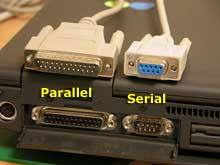
Parallel and Serial ports on the back of a PC laptop
(click for larger image) | ||
USB (Universal Serial Bus) is a newer type of serial connection that is much faster than the old serial ports. USB is also much smarter and more versatile since it allows the “daisy chaining” of up to 127 USB peripherals connected to one port.
USB ports can support the connection of many kinds of devices (keyboard, mouse, printer, audio in/out, external floppy or Zip drives, scanner, flash drive, etc.). Newer PCs and Macs include several USB ports, some often located in handy spots on the front panel of the computer case or the side of the keyboard. USB connections are hot-swappable (they can be connected and disconnected while the devices are turned on; this is not always true for older connection methods).
An updated version, called USB 2.0 has a speed of 480 Mbits/sec, which is 40 times faster than the older USB port’s high-speed mode (the connectors look the same).
FireWire (IEEE 1394) | 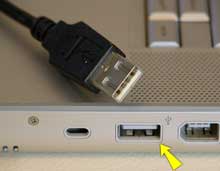
USB port on the side of a PowerBook.
(click for larger image) | ||
FireWire is a high speed interface that was developed by Apple computer. Sony uses a version called i.Link. It is often called IEEE 1394 when used on PCs (since Apple charges an extra fee for using the name “FireWire”). The first version of FireWire (FireWire 400) works at speeds of 400 Kbits/sec, and the newer FireWire 800 supports twice that speed. FireWire is hot-swappable and supports up to 63 daisy-chained peripherals per port.
FireWire works especially well for digital video and audio (from a digital camcorder) as well for connecting external hard drives or other high-bandwidth peripherals. The FireWire connection can also supply 60 watts of power to the peripheral.
SCSI | 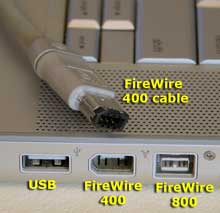
FireWire connectors
(click for larger image) | ||
SCSI (Small Computer System Interface), pronounced “scuzzy,” is an older high-speed interface technology. Up to six devices can be daisy-chained to a SCSI port on your computer, but, unlike the plug-and-play nature of USB and FireWire, the user must manually set the SCSI ID number of each device and add connection terminators as needed. In other words, it was a much bigger pain than the newer interfaces.
SCSI was used as the fast port on older Macintosh computers and some PC laptops. SCSI is also used as an interface bus for connecting internal hard disk drives in some machines.
PCMCIA | 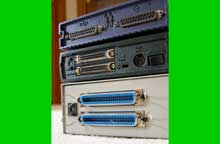
Assorted SCSI connectors
(click for larger image) | ||
PCMCIA stands for (Personal Computer Memory Card International Association). It is a standard for extension cards for mobile computers. PCMCIA cards are about the size of a credit card and are typically inserted into a slot in the side of your laptop. The card may contain extra memory (which was it primary original use) or it may contain expansion peripherals such as a modem, a tiny hard disk drive, a networking adapter, etc. Type I, II, and III cards are different thicknesses.
PCMCIA cards are also called PC Cards since most people can’t remember PCMCIA (the standard joke is that it stands for “People Can’t Memorize Computer Industry Acronyms”).
Ethernet | 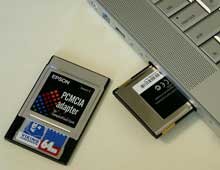
PCMCIA cards
(click for larger image) | ||
Connecting your computer to a network requires a network adapter. This circuitry and port could be built into the motherboard (as is often the case in laptops and Macs), or your computer may have a network interface card (NIC) in one of its expansion slots. Your computer also needs the necessary networking software installed.
The most commonly used networking technology is Ethernet(we use it to connect together the PCs, Macs, and server computers on the UNM-LA Local Area Network). The picture at the right shows a typical Ethernet port and Ethernet cable connector. Ethernet comes in different speed ratings, such as 10 megabits/sec, 100 megabits/sec, and gigabit/sec speeds.
PS/2 Ports | 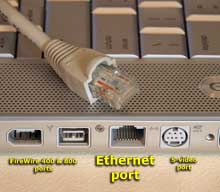
Ethernet connectors
(click for larger image) | ||
PS/2 ports are special ports for connecting the keyboard and mouse to some PC systems. This type of port was invented by IBM.
Audio Ports
The three small connectors shown at the right are for connecting sound input (from a tape player, for example), sound out (to connect your PC’s sound output to your stereo system of external speakers), and a microphone input port.
PCI, ISA, ATA, IDE, SCSI
Your computer may have interface bus standards built in that have no external connectors. The expansion slots in a PC or Mac are typically PCI (Peripheral Component Interconnect), which displaced the older ISA standard in PCs and NuBus slots in Macs. Often you will find a special slot for a video card, such as an AGP (Accelerated Graphics Port) slot. You will also run into interface standards for adding additional hard drives or optical drives inside your computer, such as IDE, EIDE, ATA, Serial ATA, and SCSI. You don’t need to remember that last bunch for this class.
| 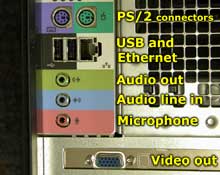
Assorted ports
(click for larger image) | ||
Input and Output Devices
Links to topics on this page:
Before a computer can process your data, you need some method to input the data into the machine. The device you use will depend on what form this data takes (be it text, sound, artwork, etc.).Similarly, after the computer has processed your data, you often need to produce output of the results. This output could be a display on the computer screen, hardcopy on printed pages, or even the audio playback of music you composed on the computer.
The terms “input” and “output” are used both as verbs to describe the process of entering or displaying the data, and as nouns referring to the data itself entered into or displayed by the computer.
Below we discuss the variety of peripheral devices used for computer input and output.
Input Devices
Keyboard
Input Devices
Keyboard
Mouse
Touch pad
Track Ball
Other
Output Devices
CRT Monitor
Flat Panel Display
Ink Jet Printer
Laster Printer
Other
Keyboard
Mouse
Touch pad
Track Ball
Other
Output Devices
CRT Monitor
Flat Panel Display
Ink Jet Printer
Laster Printer
Other
The computer keyboard is used to enter text information into the computer, as when you type the contents of a report. The keyboard can also be used to type commands directing the computer to perform certain actions. Commands are typically chosen from an on-screen menu using a mouse, but there are often keyboard shortcuts for giving these same commands.
In addition to the keys of the main keyboard (used for typing text), keyboards usually also have a numeric keypad (for entering numerical data efficiently), a bank of editing keys (used in text editing operations), and a row of function keys along the top (to easily invoke certain program functions). Laptop computers, which don’t have room for large keyboards, often include a “fn” key so that other keys can perform double duty (such as having a numeric keypad function embedded within the main keyboard keys).
Improper use or positioning of a keyboard can lead to repetitive-stress injuries. Some ergonomic keyboards are designed with angled arrangements of keys and with built-in wrist rests that can minimize your risk of RSIs.
Most keyboards attach to the PC via a PS/2 connector or USB port (newer). Older Macintosh computers used an ABD connector, but for several years now all Mac keyboards have connected using USB.
Pointing Devices
The graphical user interfaces (GUIs) in use today require some kind of device for positioning the on-screen cursor. Typical pointing devices are: mouse, trackball, touch pad, trackpoint, graphics tablet, joystick, and touch screen.
Pointing devices, such as a mouse, connected to the PC via aserial ports (old), PS/2 mouse port (newer), or USB port (newest). Older Macs used ADB to connect their mice, but all recent Macs use USB (usually to a USB port right on the USB keyboard).
Mouse
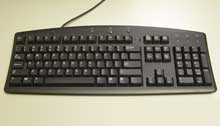
PC Keyboard (you have one in front of you that you can see for a closer look)
The mouse pointing device sits on your work surface and is moved with your hand. In older mice, a ball in the bottom of the mouse rolls on the surface as you move the mouse, and internal rollers sense the ball movement and transmit the information to the computer via the cord of the mouse.
The newer optical mouse does not use a rolling ball, but instead uses a light and a small optical sensor to detect the motion of the mouse by tracking a tiny image of the desk surface. Optical mice avoid the problem of a dirty mouse ball, which causes regular mice to roll unsmoothly if the mouse ball and internal rollers are not cleaned frequently.
A cordless or wireless mouse communicates with the computer via radio waves (often using BlueTooth hardware and protocol) so that a cord is not needed (but such mice need internal batteries).
A mouse also includes one or more buttons (and possibly a scroll wheel) to allow users to interact with the GUI. The traditional PC mouse has two buttons, while the traditional Macintosh mouse has one button. On either type of computer you can also use mice with three or more buttons and a small scroll wheel (which can also usually be clicked like a button).
Touch pad
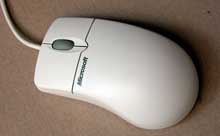
Two-button mouse with scroll wheel
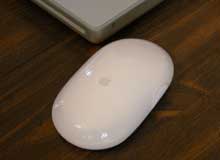
Wireless Macintosh mouse
Most laptop computers today have a touch pad pointing device. You move the on-screen cursor by sliding your finger along the surface of the touch pad. The buttons are located below the pad, but most touch pads allow you to perform “mouse clicks” by tapping on the pad itself.
Touch pads have the advantage over mice that they take up much less room to use. They have the advantage over trackballs (which were used on early laptops) that there are no moving parts to get dirty and result in jumpy cursor control.
Trackpoint
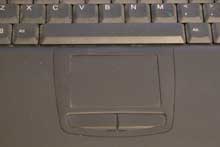
Touch pad of a PC laptop
Some sub-notebook computers (such as the IBM ThinkPad), which lack room for even a touch pad, incorporate atrackpoint, a small rubber projection embedded between the keys of the keyboard. The trackpoint acts like a little joystick that can be used to control the position of the on-screen cursor.
Trackball
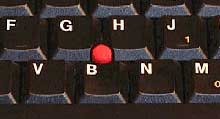
Trackpoint
The trackball is sort of like an upside-down mouse, with the ball located on top. You use your fingers to roll the trackball, and internal rollers (similar to what’s inside a mouse) sense the motion which is transmitted to the computer. Trackballs have the advantage over mice in that the body of the trackball remains stationary on your desk, so you don’t need as much room to use the trackball. Early laptop computers often used trackballs (before superior touch pads came along).
Trackballs have traditionally had the same problem as mice: dirty rollers can make their cursor control jumpy and unsmooth. But there are modern optical trackballs that don’t have this problem because their designs eliminate the rollers.
Joysticks
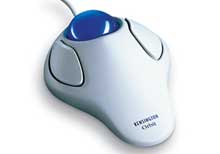
Trackball
Joysticks and other game controllers can also be connected to a computer as pointing devices. They are generally used for playing games, and not for controlling the on-screen cursor in productivity software.
Touch screen
Some computers, especially small hand-held PDAs, have touch sensitive display screens. The user can make choices and press button images on the screen. You often use a stylus, which you hold like a pen, to “write” on the surface of a small touch screen.
Graphics tablet
A graphics tablet consists of an electronic writing area and a special “pen” that works with it. Graphics tablets allows artists to create graphical images with motions and actions similar to using more traditional drawing tools. The pen of the graphics tablet is pressure sensitive, so pressing harder or softer can result in brush strokes of different width (in an appropriate graphics program).
Scanners
A scanner is a device that images a printed page or graphic by digitizing it, producing an image made of tiny pixels of different brightness and color values which are represented numerically and sent to the computer. Scanners scan graphics, but they can also scan pages of text which are then run through OCR (Optical Character Recognition) software that identifies the individual letter shapes and creates a text file of the page's contents.
Microphone
A microphone can be attached to a computer to record sound (usually through a sound card input or circuitry built into the motherboard). The sound is digitized—turned into numbers that represent the original analog sound waves—and stored in the computer to later processing and playback.
MIDI Devices
MIDI (Musical Instrument Digital Interface) is a system designed to transmit information between electronic musical instruments. A MIDI musical keyboard can be attached to a computer and allow a performer to play music that is captured by the computer system as a sequence of notes with the associated timing (instead of recording digitized sound waves).
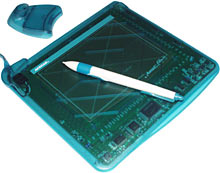
Graphics tablet.
Output Devices
CRT Monitor
The traditional output device of a personal computer has been the CRT (Cathode Ray Tube) monitor. Just like a television set (an older one, anyway) the CRT monitor contains a large cathode ray tube that uses an electron beam of varying strength to “paint” a picture onto the color phosphorescent dots on the inside of the screen. CRT monitors are heavy and use more electrical power than flat panel displays, but they are preferred by some graphic artists for their accurate color rendition, and preferred by some gamers for faster response to rapidly changing graphics.
Monitor screen size is measured diagonally across the screen, in inches. Not all of the screen area may be usable for image display, so the viewable area is also specified. The resolutionof the monitor is the maximum number of pixels it can display horizontally and vertically (such as 800 x 600, or 1024 x 768, or 1600 x 1200). Most monitors can display several resolutions below its maximum setting. Pixels (short for picture elements) are the small dots that make of the image displayed on the screen. The spacing of the screen’s tiny phosphor dots is called the dot pitch (dp), typically .28 or .26 (measured in millimeters). A screen with a smaller dot pitch produces sharper images.
Your computer must produce a video signal that a monitor can display. This may be handled by circuitry on the motherboard, but is usually handled by a video card in one of the computer’s expansion slots; often the slot is a special one dedicated to video use, such as an AGP slot (Accelerated Graphics Port). Video cards are also called video display adapters, andgraphics cards. Many video cards contain separate processors and dedicated video memory for generating complex graphics quickly without burdening the CPU. Theseaccelerated graphics cards are loved by gamers.
Flat Panel Monitor
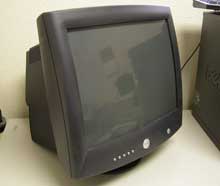
CRT monitor
A flat panel display usually uses an LCD (Liquid Crystal Display) screen to display output from the computer. The LCD consists of several thin layers that polarize the light passing through them. The polarization of one layer, containing long thin molecules called liquid crystals, can be controlled electronically at each pixel, blocking varying amounts of the light to make a pixel lighter or darker. Other types of flat panel technology exist (such as plasma displays) but LCDs are most commonly used in computers, especially laptops.
Older LCDs had slow response times and low contrast, butactive matrix LCD screens have a transparent thin film transistor (TFT) controlling each pixel, so response, contrast, and viewing angle are much improved.
Flat panel displays are much lighter and less bulky than CRT monitors, and they consume much less power. They have been more expensive than CRTs in the past, but the price gap is narrowing. You will see many more flat panels in the future.
As with CRTs, the display size of a flat panel is expressed in inches, and the resolution is the number of pixels horizontally and vertically on the display.
Ink Jet Printer
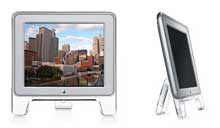
Flat panel display (LCD)
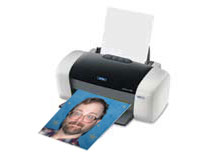
For hardcopy (printed) output, you need some kind of printer attached to your computer (or available over a network). The most common type of printer for home systems is the color ink jet printer. These printers form the image on the page by spraying tiny droplets of ink from the print head. The printer needs several colors of ink (cyan, yellow, magenta, and black) to make color images. Some photo-quality ink jet printers have more colors of ink.
Ink jet printers are inexpensive, but the cost of consumables (ink cartridges and special paper) make them costly to operate in the long run for many purposes.
Laser Printer
Inkjet Printer
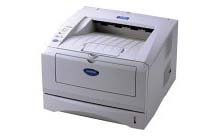
A laser printer produces good quality images by the same technology that photocopiers use. A drum coated with photosensitive material is charged, then an image is written onto it by a laser (or LEDs) which makes those areas lose the charge. The drum then rolls through toner (tiny plastic particles of pigment) that are attracted to the charged areas of the drum. The toner is then deposited onto the paper, and then fused into the paper with heat.
Most laser printers are monochrome (one color only, usually black), but more expensive laser printers with multiple color toner cartridges can produce color output.
Laser printers are faster than ink jet printers. Their speed is rated in pages per minute (ppm). Laser printers are more expensive than ink jets, but they are cheaper to run in the long term if you just need good quality black & white pages.
Other Printers
Laser Printer
Multi-function printers are available that not only operate as a computer printer, but also include the hardware needed to be a scanner, photocopier, and FAX machine as well.
Dot matrix printers use small electromagnetically activated pins in the print head, and an inked ribbon, to produce images by impact. These printers are slow and noisy, and are not commonly used for personal computers anymore (but they can print multi-layer forms, which neither ink jet or laser printers can).
Sound Output
Computers also produce sound output, ranging from simple beeps alerting the user, to impressive game sound effects, to concert quality music. The circuitry to produce sound may be included on the motherboard, but high quality audio output from a PC usually requires a sound card in one of the expansion slots, connected to a set of good quality external speakers or headphones.
Multimedia is a term describing computer output that includes sound, text, graphics, movies, and animation. A sound card is an example of a multimedia output device (as is a monitor that can display graphics).
Return to Top Return to Top
Subscribe to:
Comments (Atom)